# Promotions
You can create a promotion for your customers.
Promotions in Highlightcards are designed for customer communication and event marketing.\
They don’t affect the main loyalty logic or point-accrual rules — instead, they help notify customers about special events, campaigns, or offers.
For example, you can create a promotion to announce a “Sweet Week,” invite customers to a store anniversary celebration, or highlight a limited-time gift.
During a promotion, the card design can change, and customers will see the promotional details directly on their loyalty card, increasing visibility and engagement for specific events or campaigns.
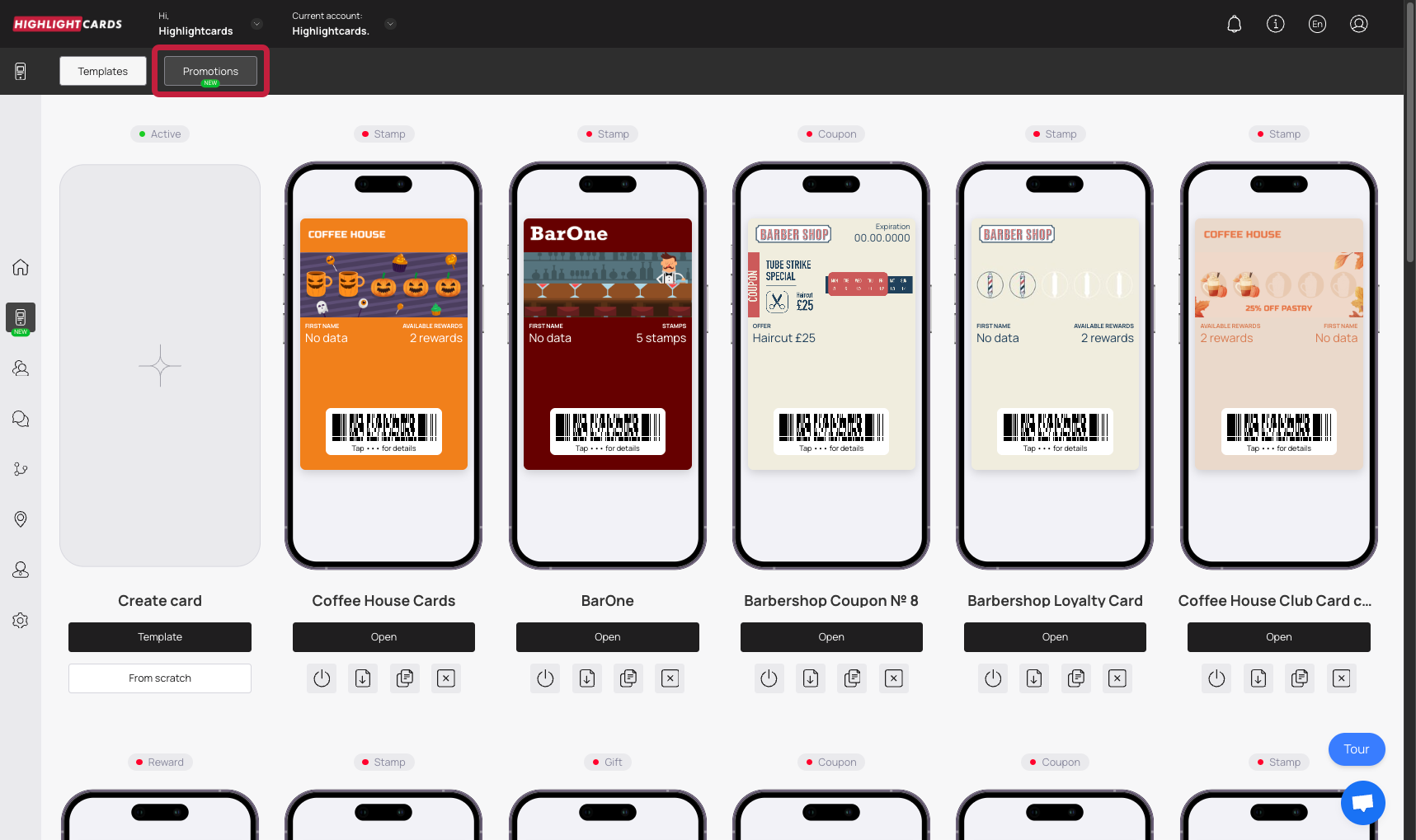
To set this up, go to the **Promotions** section.
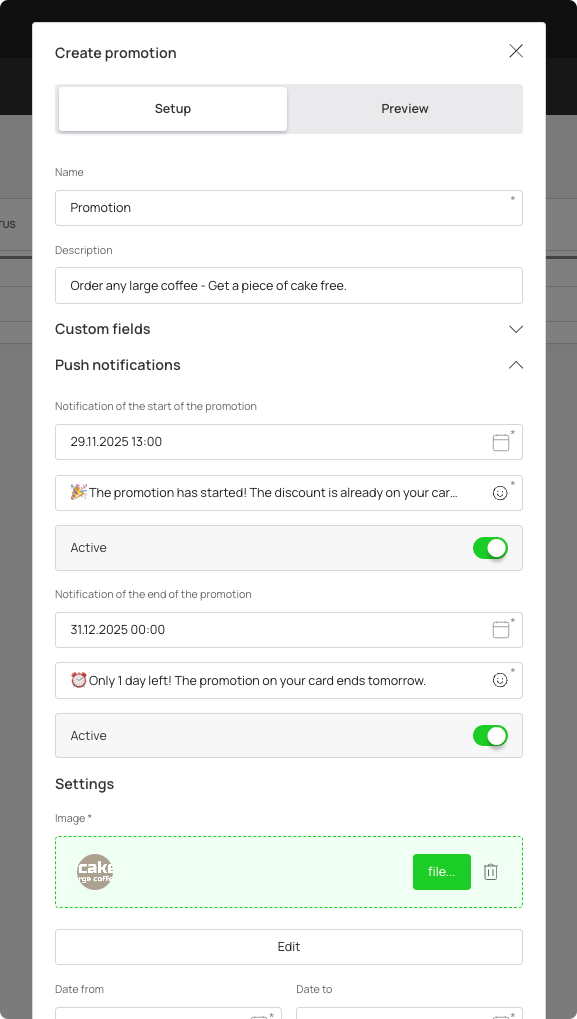
In the promotion creation form, enter the promotion name and description.\
Then, select the fields that will be displayed on customer cards during the promotion.
Set up push notifications to inform customers about the start and end of the promotion.
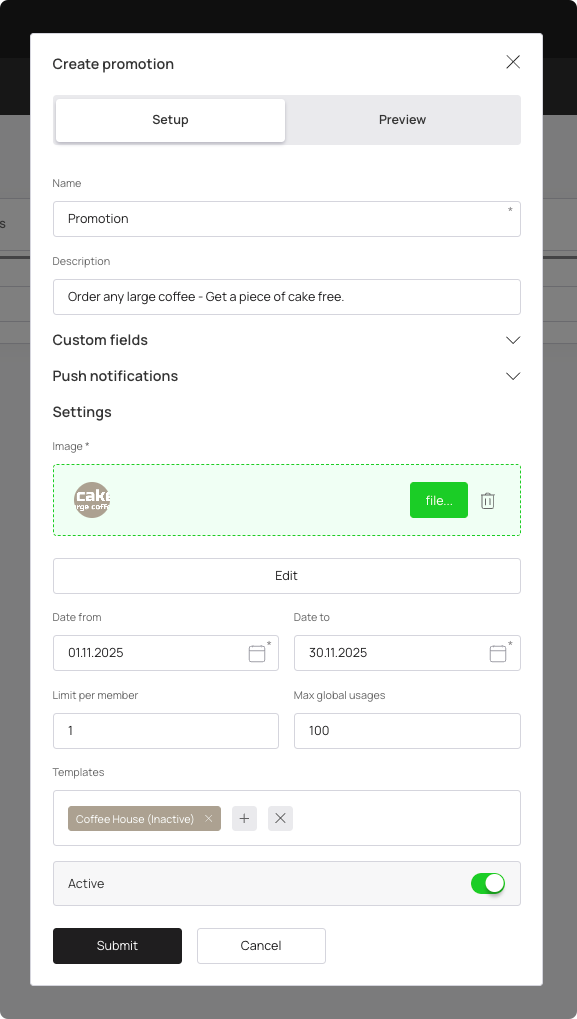
Add an image that will replace the card background during the promotion (recommended size: 960×252 pixels, PNG format only, max 3 MB). You can view a preview of the promotion in the adjacent tab.
Set usage limits: a per-client limit and a total usage limit for the promotion.
Select the templates the promotion will apply to. Each template can only have one promotion active for a given period.\
When everything is ready, switch the promotion status to active.
#### Usage Limits
In this section, you can set two optional limits:
**Limit per member** — the maximum number of times a single customer can use the promotion.\
**Max global usages** — the total number of times the promotion can be used across all customers.
Both fields are optional.\
If left empty, the promotion will have no restrictions — customers will be able to use it an unlimited number of times.
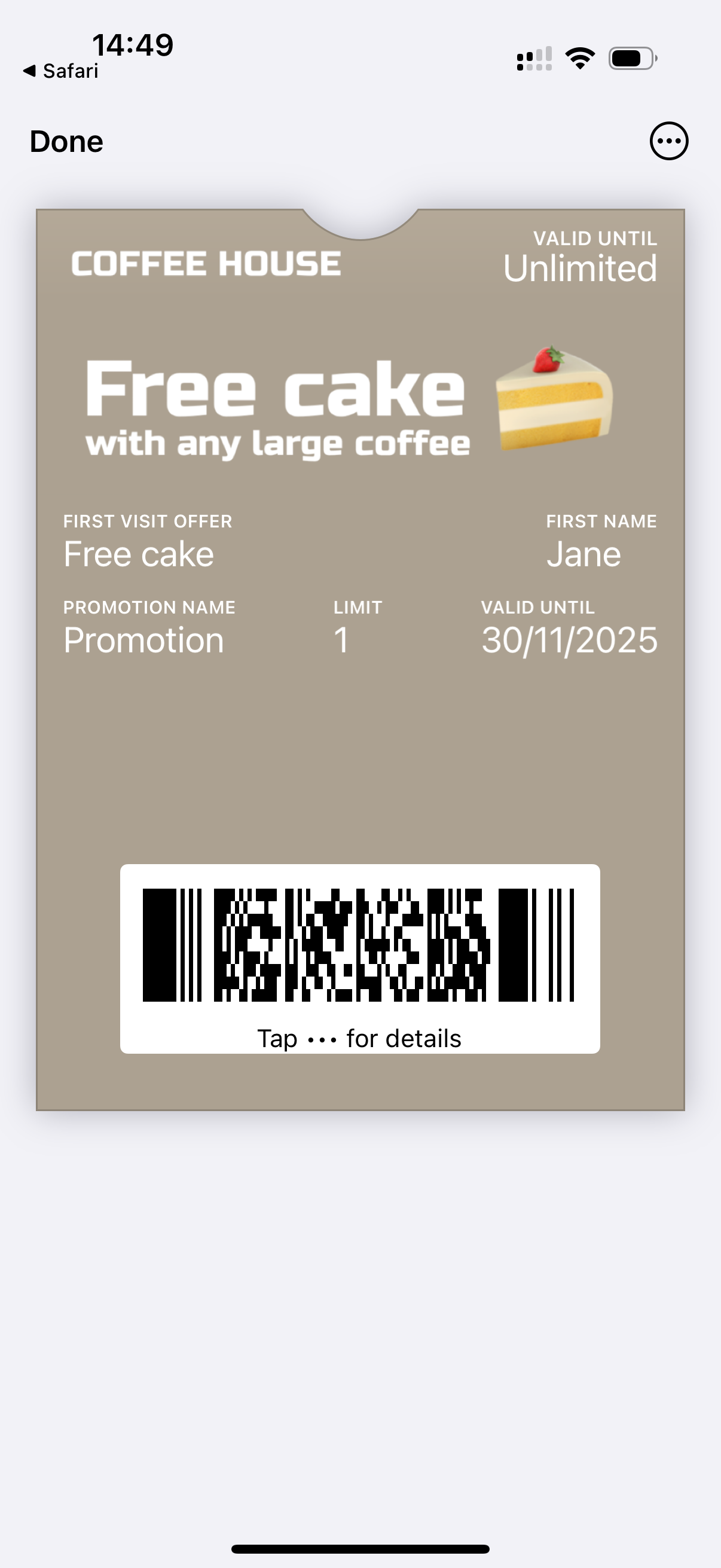
#### Promotion Card Preview on Your Phone
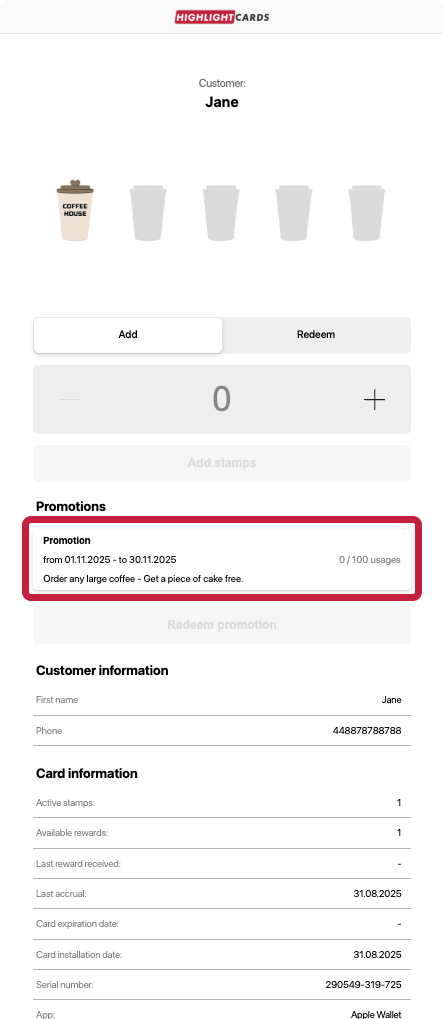
This is how the promotion card will appear on a customer’s device.
The promotion can be redeemed both in the customer profile and via the scanner.
#### How to Delete a Promotion
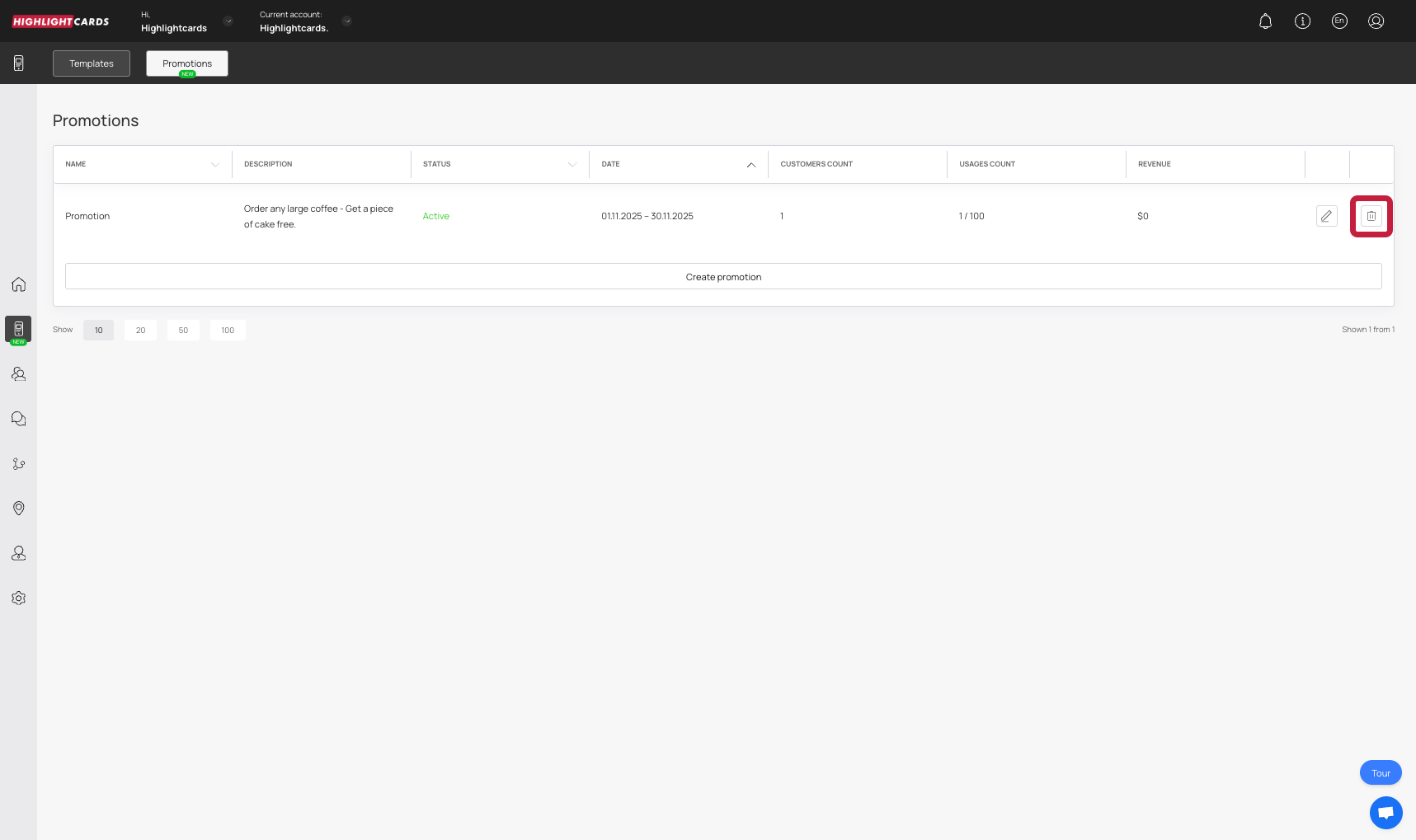
To remove an existing promotion, open the **Promotions** tab in your dashboard. In the list of active or scheduled promotions, find the one you want to delete. Click the trash bin icon at the far right of the row. After confirming, the promotion will be permanently deleted and will no longer be available to customers.
#### How Promotions Interact With Card Mechanics
Promotions do **not** change the core functionality of a card.\
A promotion cannot double cashback, add extra stamps, increase discounts, or automate extra points or rewards.\
They do not affect the card’s earning rules in any way.