✴️Stamps

How to create a stamp card

A Stamp Card rewards customers each time they visit or make a purchase. For every qualifying action, the customer collects a stamp. Once they reach the required number (e.g., 10 stamps), they unlock a reward β€” such as a free coffee, a service upgrade, or a complimentary product.

Customers can clearly see on the card:

  • how many stamps they currently have

  • how many more they need to claim a reward

  • when a reward has been earned

After the reward is redeemed, you simply deduct it from the card, and the customer starts collecting stamps again. This format is perfect for cafΓ©s, beauty salons, barbershops, and any business that benefits from repeat visits.

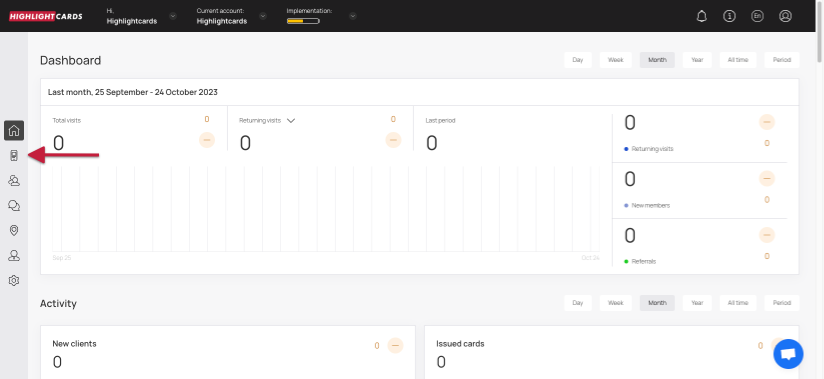
  1. Upon successful login, navigate to the left-hand menu.

  2. From the list of modules, click the icon. Doing so opens the Cards module.

Cards
  1. Here, you can either create a card using a template from a list of a wide range of pre-loaded templates or create one from scratch. To develop a better understanding, we will take a look at card creation from scratch.

  2. To do so, click the button.

From Scratch
  1. This initiates the stamp card creation workflow. A card is created by filling in the details in 5 sections that include Card Type, Settings, Design, Information, and Save and preview. Let us take a look at how each section works.

Card Type

  1. This is the first section. Here, you make a selection regarding the type of card you want to create.

  2. From the available card types, click Stamp.

  3. Once selected, click the Continue button. As a result, you land on the Settings section.

Select Card Type & Continue

Settings

In the Settings section, you can define how your stamp card works β€” from barcode type and reward logic to expiration rules, language, card fields, and more. Use this page to shape how customers interact with your loyalty program.

Barcode Type Choose how the card will be scanned and recognized by your system. You can simply select the appearance you like.

Rewards Program Choose how customers will earn stamps.

Spend β€” Customers earn stamps based on how much they spend. Visit β€” Customers earn one stamp per visit, regardless of the amount spent. Stamps β€” Each visit equals one manually-issued stamp. Custom rules (like β€œ1 stamp for every 3 visits”) must be applied manually. Restrict to 1 check-in per day β€” Customers receive stamps only once per day, even if they visit multiple times.

⚠️ The system does not support automatic custom rules (like β€œ1 stamp for every 3 visits” or β€œonly for purchases over $20”).

How do you want to reward your customers? A field where you specify the reward name (e.g., β€œFree Coffee”) and the reward cost.

Happy hours A setting that allows you to select a time period during which customers receive an increased number of stamps based on your chosen logic. ❗ Works only with Spend and Visit modes.

Card Expiration Unlimited β€” The card never expires. Fixed term β€” The card becomes inactive after the selected date but stays on the customer’s phone. Fixed term after card issuing β€” Set the number of days from card activation until it expires.

Stamp Life Define how long each stamp is valid after it is earned. Each stamp expires individually based on when it was added. ⚠️ If stamps have already reached the reward threshold, they will not expire. Rewards never expire.

Example: If validity is set to 1 month and a stamp is earned on April 5, it expires on May 5.

Locations Enter one or more locations to enable geolocation push notifications. Customers with the card in Apple Wallet receive a push when they come within 100 meters. These locations can be any address, not necessarily your business location.

Card Language Select the language of the stamp card.

Date & Number Formats Date Format β€” Defines how dates appear on the card. Thousands / Decimal Separators β€” Irrelevant for stamp cards (they do not use points).

Purchase Amount When Charging β€” When enabled, the purchase amount must be entered during each scanner transaction. βœ… Applies only to scanner transactions.

Card Issuing Form & UTM Tags Card Issuing Form β€” Define which fields appear during card installation. Phone number or email is required. You can add fields, rename them, delete them, mark them as Required, or set them as Unique (recommended only for phone numbers). ⚠️ Avoid making Name, Surname and Date of Birth unique β€” customers with the same name would not be able to install the card.

UTM Tags β€” Create trackable installation links. Highlightcards will generate a UTM-tagged URL and a QR code so you can track where installs come from.

Phone Mask & Privacy Settings Phone Mask β€” Select the default country prefix. Privacy Policy β€” Display a privacy-policy checkbox during installation. Text can be edited. Consent to the processing of personal data β€” Adds a checkbox allowing customers to agree to personal data use for marketing purposes. The text is fully customizable.

Google Wallet Installation Button If enabled, the Google Wallet button appears on the installation form so customers can instantly add their loyalty card to Google Wallet.

PWA Installation Button If enabled, customers can install the loyalty card as a Progressive Web App (PWA) β€” it behaves like a mobile app without requiring an app-store download.

Usage Limits & Starting Bonuses Limit the number of cards issued β€” Controls how many cards can be distributed (0 = unlimited). Limit the number of stamp accruals per day β€” Controls how many stamps a customer can earn per day (resets at midnight). Number of stamps when issuing a card β€” Sets the starting number of stamps on a new card. Number of birthday stamps β€” Adds extra stamps on the customer’s birthday. This stamp has no expiration date.

Analytics If you want to include a custom analytics script, insert it into the Analytics field.

Once the required fields are filled, click Continue to move to the Design section.

Design

  1. This section lets you configure the design of the stamp card.

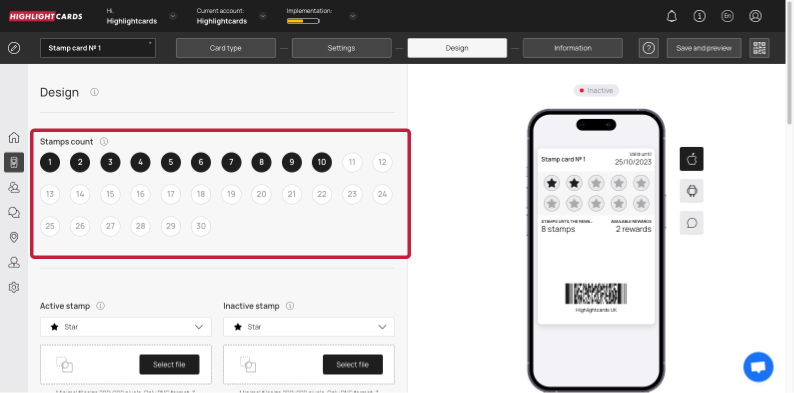
  2. Starting off, choose the number of stamps at which the reward can be redeemed from the Stamp Count heading.

Stamp Count
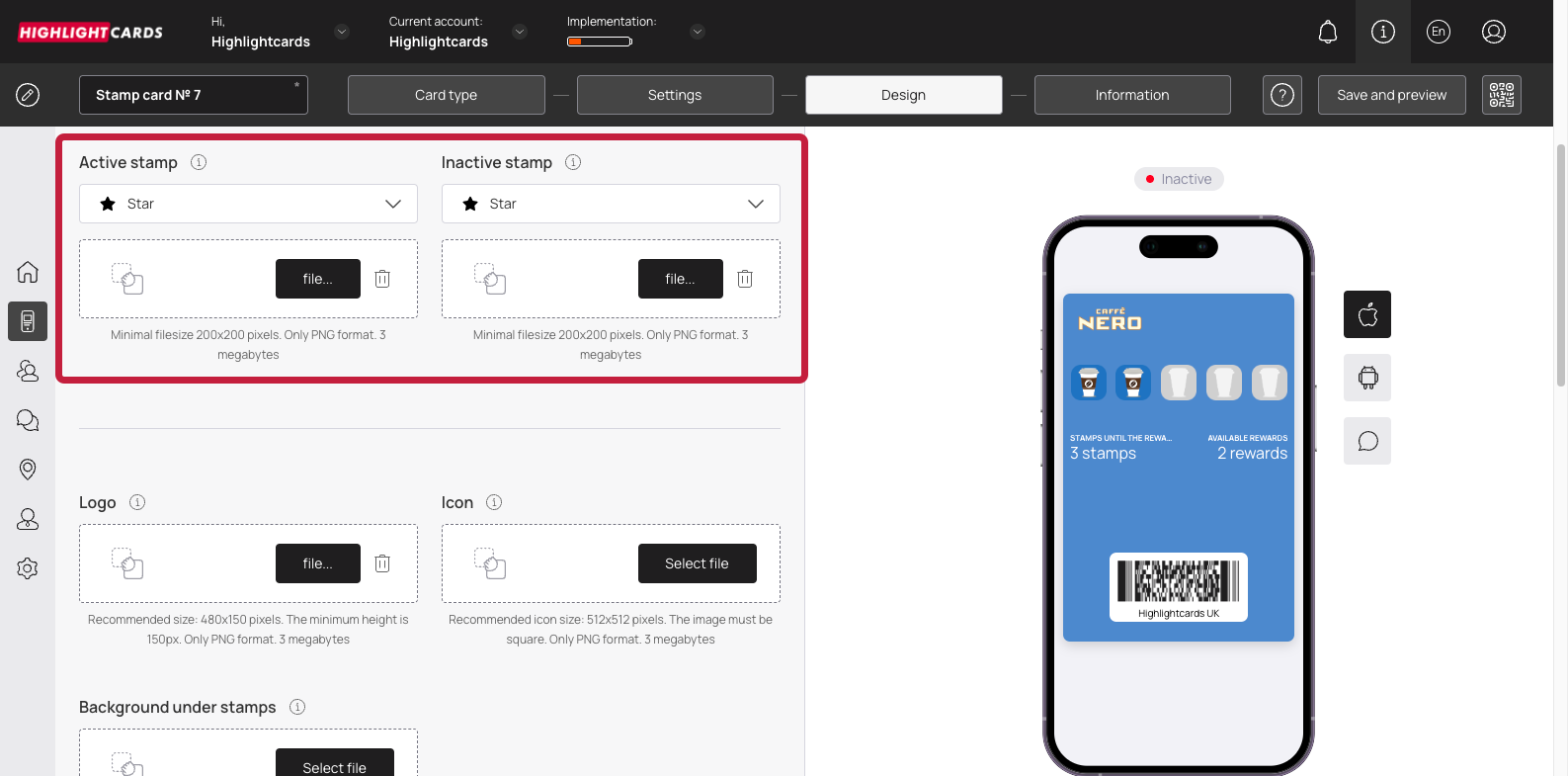
  1. Use the Active Stamp dropdown to select the icon for representing how the active stamp would appear.

Active Stamp
  1. Similarly, use the Inactive Stamp dropdown to choose the icon representing an inactive stamp.

  2. In case you want to upload an icon from your system storage for an active stamp, click the Select File button under the Active Stamp dropdown.

  3. Similarly, clicking the Select File button under the Inactive Stamp dropdown lets you choose an icon for inactive stamp from your system storage.

  4. Click the Select File button from the Logo heading to choose a logo to be displayed on the card and on the release form from your system storage.

Select File - Logo
  1. Similarly, click the Select File button from the Icon heading to choose an icon from your system storage to be displayed in the push messages.

  2. Choose an icon from your system storage for the background under the stamps by clicking the Select File button under the Background under stamps heading.

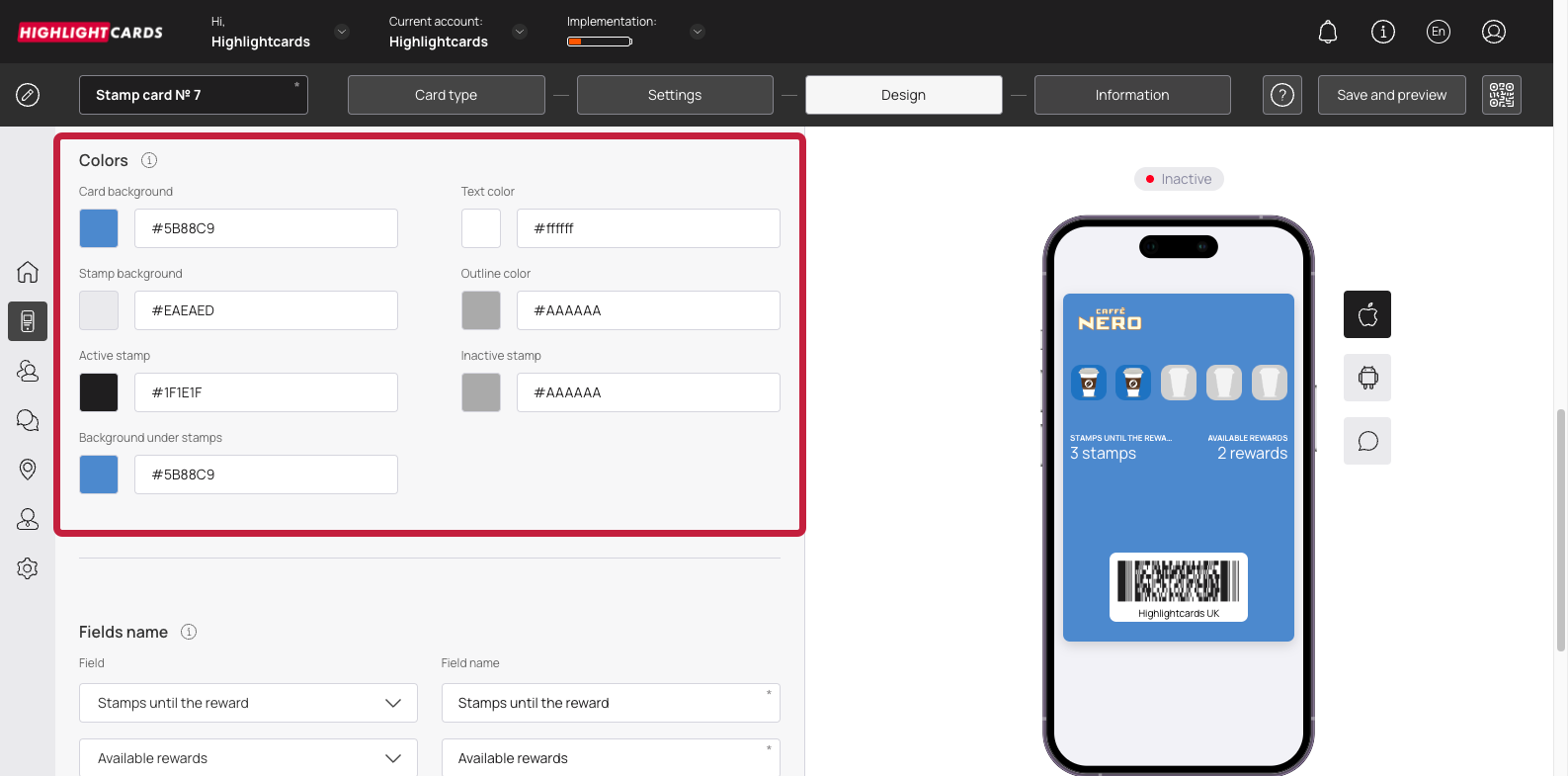
  3. From the Colors section, you can set the colors for Card Background, Text Color, Stamp Background, Outline Color, Active Stamp, Inactive Stamp, and Background under stamp.

Colors
  1. From the Fields Name heading, you can use the Field dropdown to select the type of field that appears on the card.

Fields Name
  1. Similarly, the Field Name field allows you to enter what text appears on the card in the defined field.

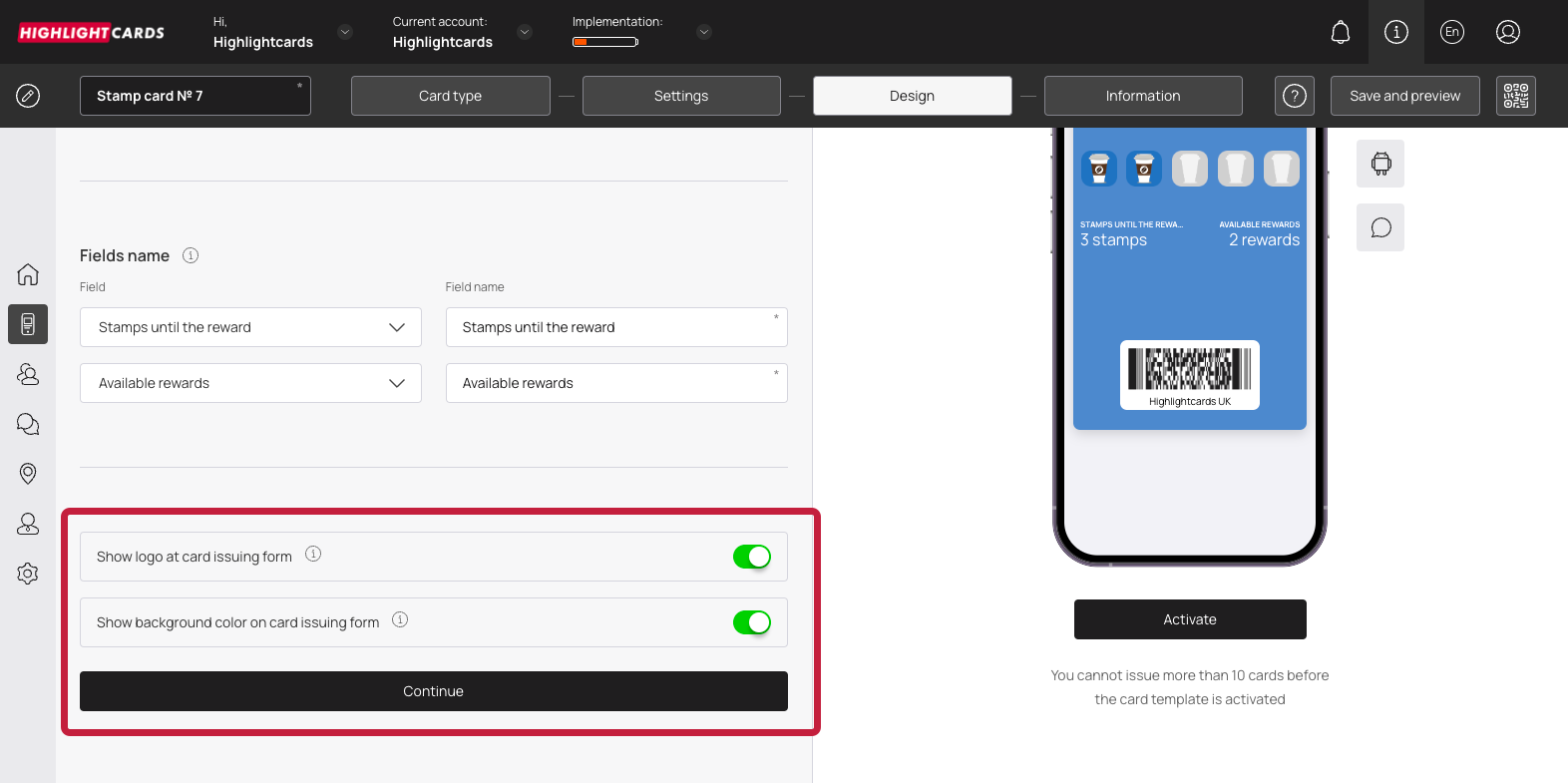
  2. In case you want the logo to appear on the Card Issuing Form, enable the Show logo at card issuing form toggle button.

Show Logo
  1. Similarly, enable the Show background color on card issuing form toggle button in case you want the background color to appear on the card issuing form.

  2. Once all the selections are made, click the Continue button to move to the Information section.

Information

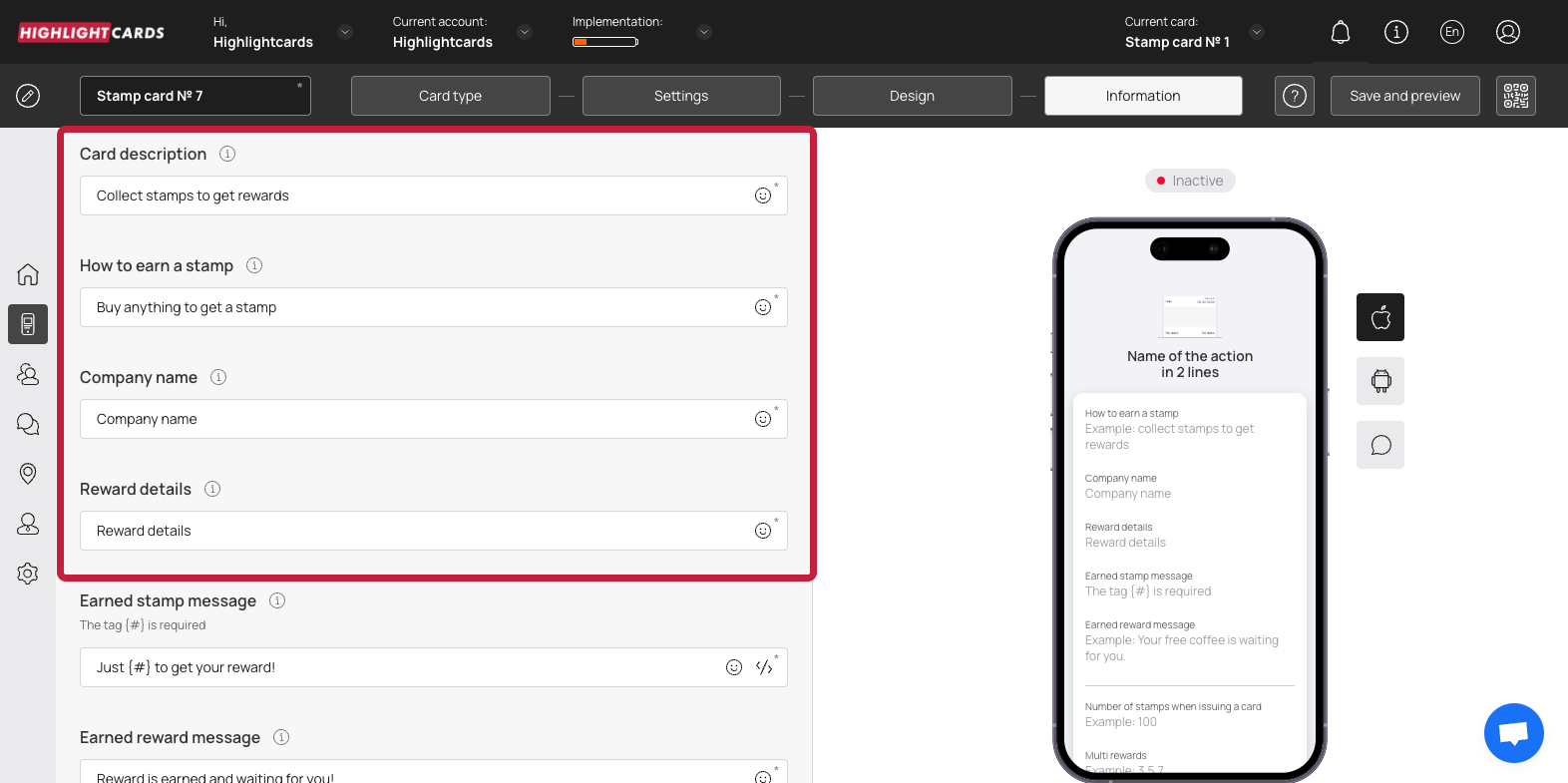
  1. This section lets you fill relevant information in the card. The impact of each field can be viewed in the mobile screen preview displayed on the right side of the screen.

  2. Use the Card Description field to enter a short description of the card.

Card Description
  1. Use the How to earn a stamp to define how a customer would earn a stamp.

  2. Use the Company Name field to enter the name of your business.

  3. Enter the details of the reward using the Reward Details field.

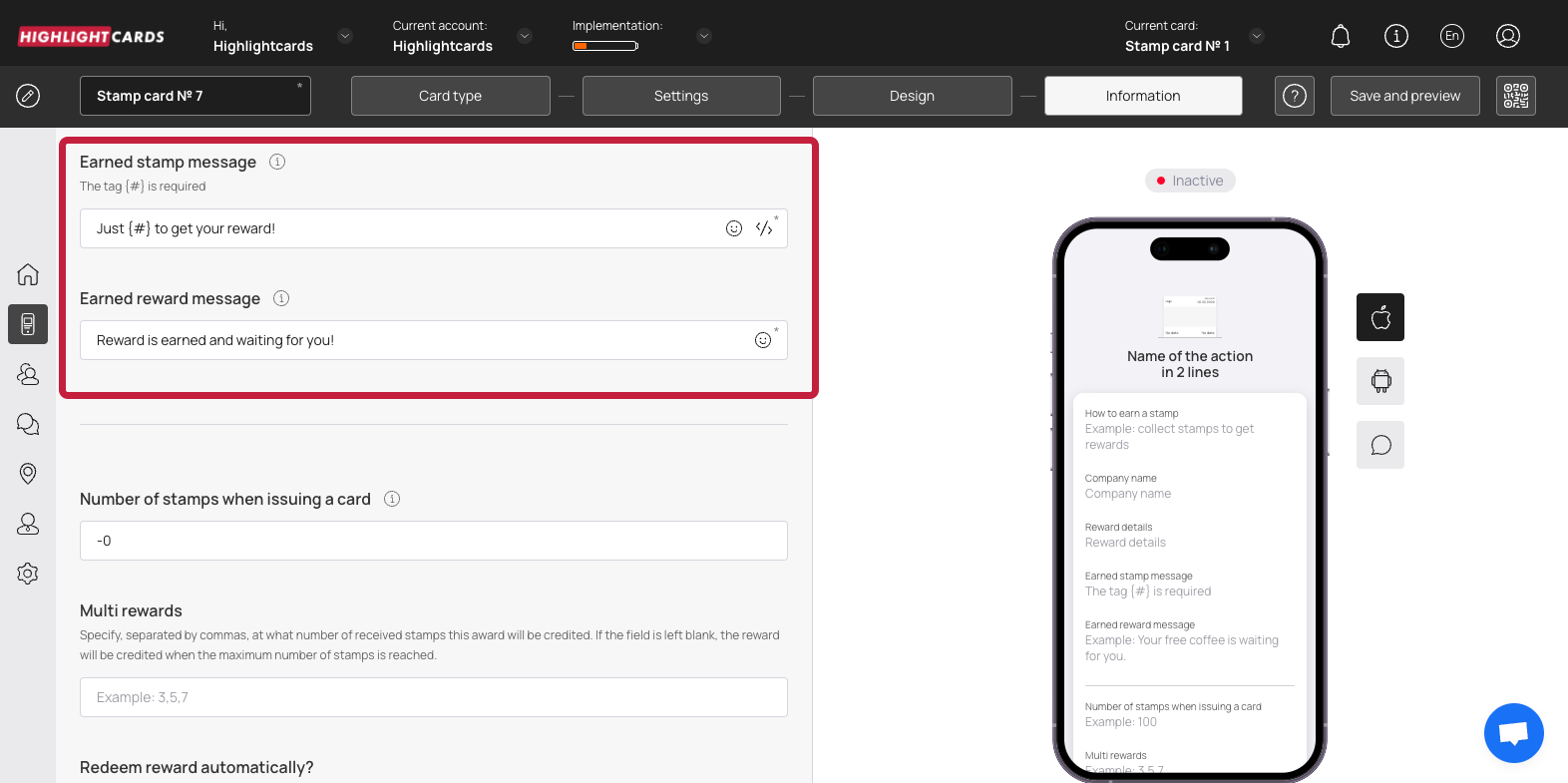
  4. Use the Earned Stamp Message field to enter the message to be displayed when customer earns a stamp.

Earned Stamp Message
  1. Similarly, enter the message to be displayed when customer earns a reward using the Earned reward message field.

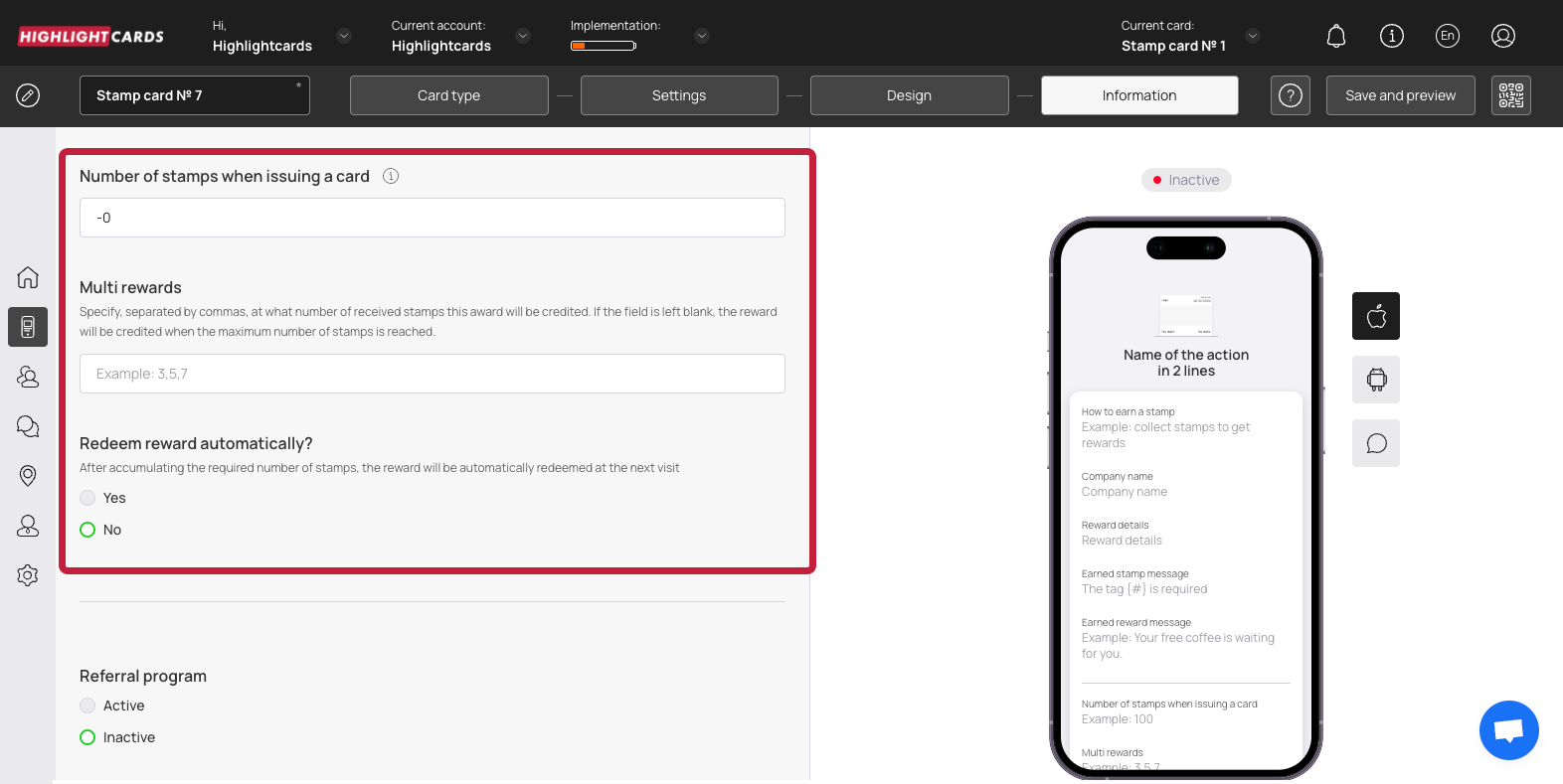
  2. Moving further, define the number of stamps a customer should earn for a card to be issued using the Number of stamps when issuing a card field.

Number of stamps when issuing a card
  1. Use the Multi Rewards field to enter the number of stamps separated by a comma (3,6,9) to issue multiple rewards on a defined number of earned stamps.

  2. In case you want the earned rewards to be redeemed automatically, select Yes from the Redeem Rewards

  3. Choose whether you want to activate the referral program using the Active and Inactive radio buttons under the Referral Program heading.

Referral Program
  1. Define when the bonus is issued to a customer from the options available under the Get bonus at the moment when heading.

  2. Choose how many stamps a customer earns upon sharing their card via the referral program using the Stamps count for referrer heading.

  3. Similarly, choose the number of steps a new customer earns upon registering via the referral program using the count icons under the Stamps count for new customer heading.

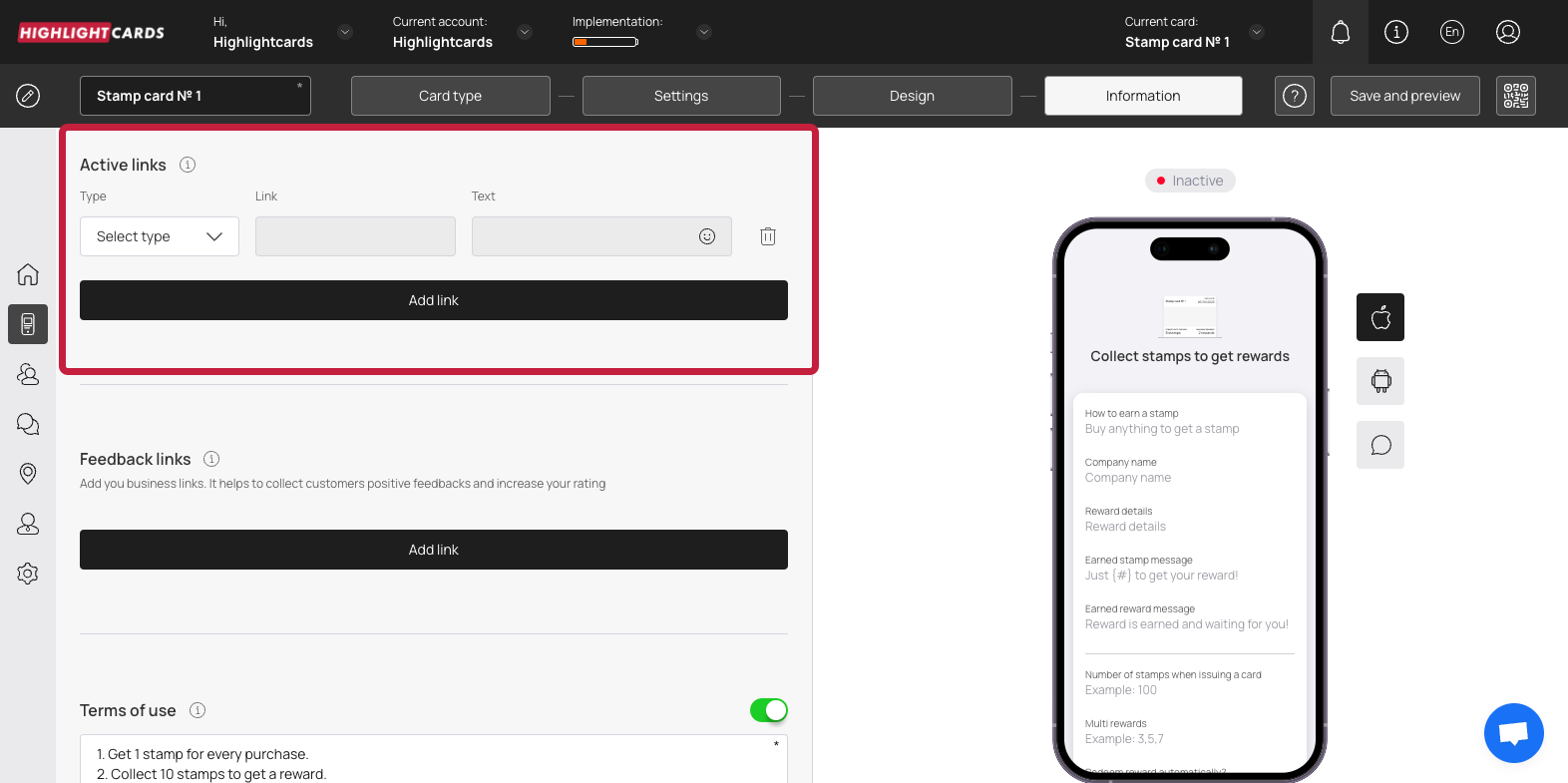
  4. From the Active Links heading, choose the type of link you want to include on the card using the Type dropdown. The available options include URL, Phone, Email, and Address.

Type
  1. Enter the website URL in the Link field.

  2. Enter the text to appear on the card using the Text field.

  3. To remove an active link, click the bin button.

  4. To add another link, click the Add Link button. This adds a new row for another link to be recorded.

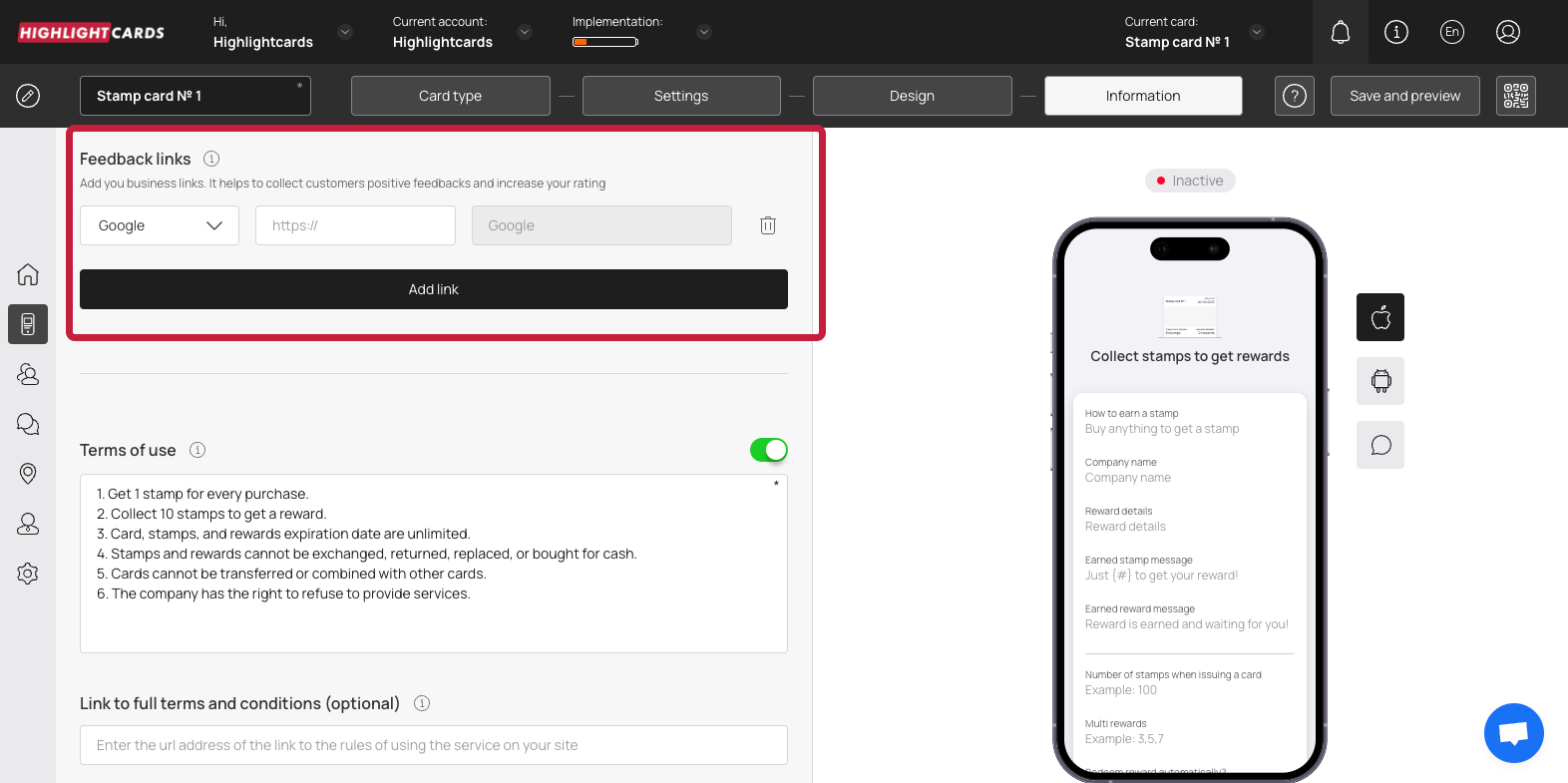
  5. Similarly, use the link type dropdown and link fields under the Feedback Links heading to add your business links for the customer reviews to be recorded.

Feedback Links
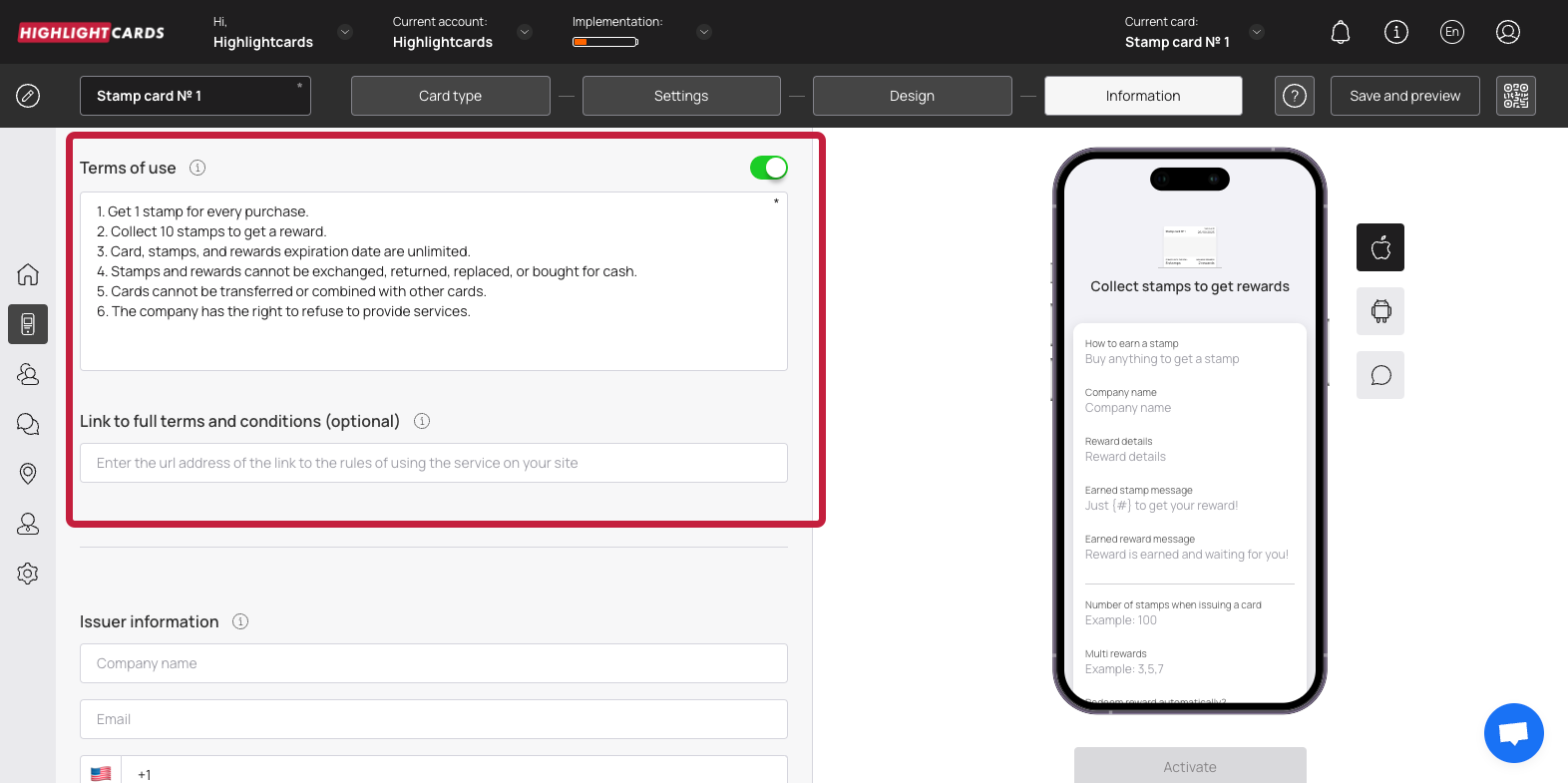
  1. In case you want to include Terms of use on the card, enable the toggle button next to Terms of Use heading.

Toggle
  1. Enter any terms of use you want to include on the card using the Terms of Use field.

  2. Use the Link to full terms and conditions field to provide a link to the complete T&Cs of your business.

  3. Use the Company Name, Email, and Contact Number fields under the Issuer Information heading to record the card issuer details to be displayed at the back of the card.

  4. To activate the template, click the Activate button under the card preview.

Activate

Save & Preview

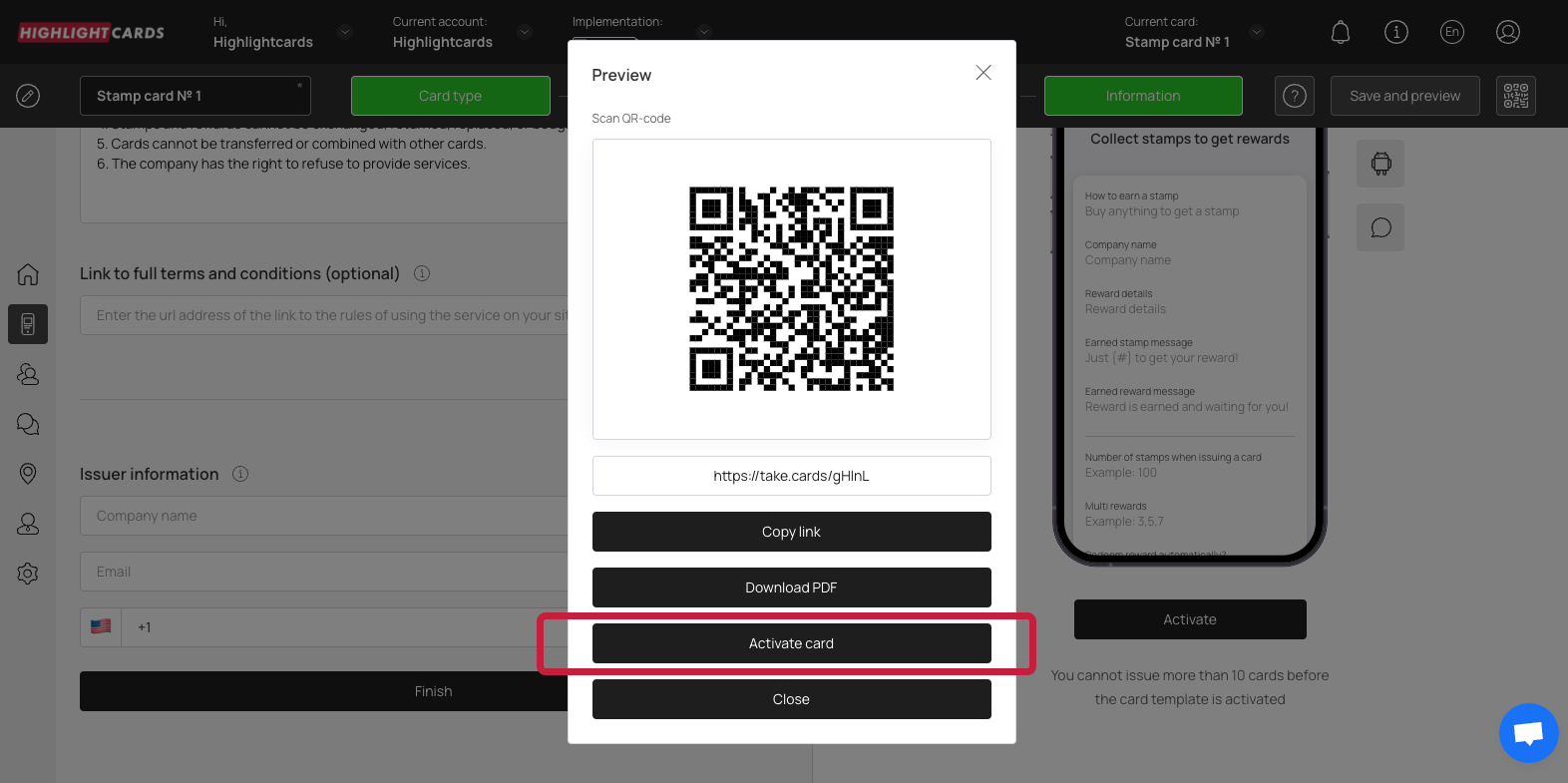
  1. As the Finish button is clicked, the Preview popup is displayed.

  2. From here, you can scan the QR code of the card.

  3. To copy the link of the car, click the Copy link button.

Last updated