# Automations
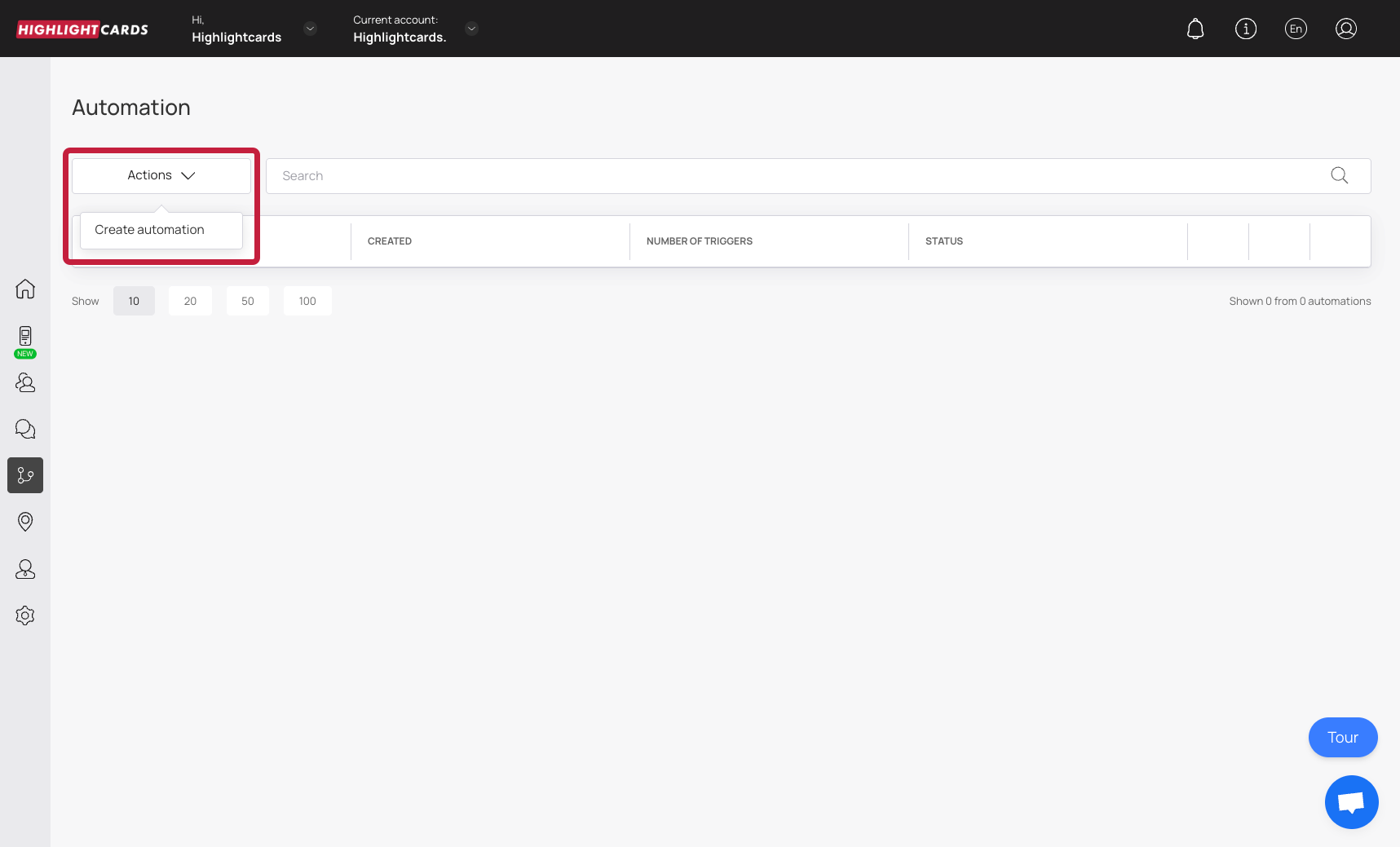
To create a new automation, open the [Automation](https://app.highlightcards.co.uk/automations) section and click **Create automation** in the action menu.
Next to each automation, you can switch between **active mode** and **draft mode**, as well as delete it if needed.\
The counter next to the automation name shows how many times the automation has been triggered.
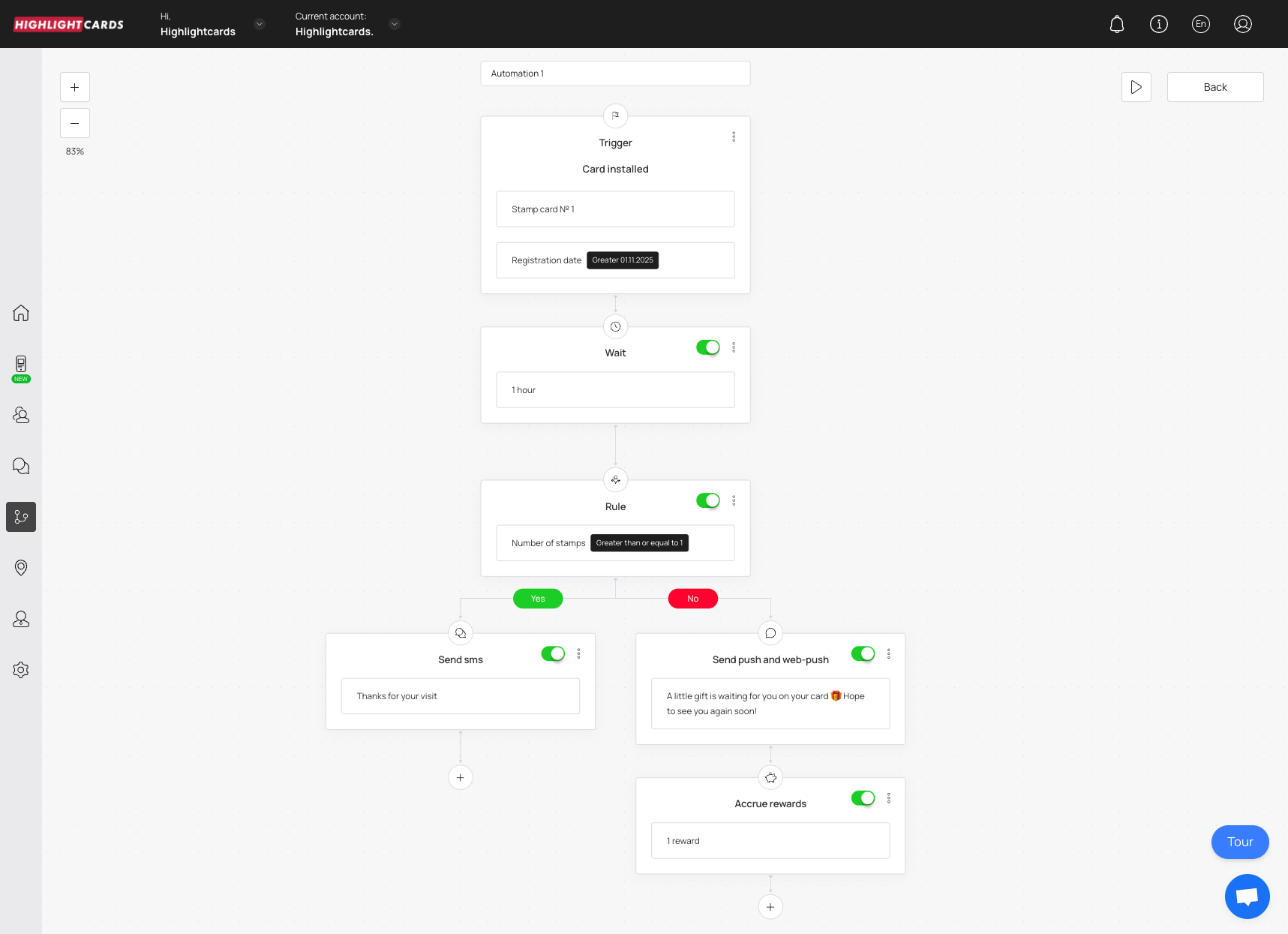
Inside the automation editor, you can choose the **trigger** that starts the chain, and optionally add **filters** that define when the trigger should activate.
**Triggers and Card Types**\
Not all triggers work with every type of card.\
Here is how compatibility works:
• **Points count reached** → works only with **cashback**, **reward**, and **gift** cards.\
• **Rewards count reached** and **Used reward count reached** → work only with **stamp** cards.
This ensures automation always responds correctly to the activity type — collecting points on one type of card, or earning/redeeming stamps on another.
**Filters and Card Types**\
The **Card bonus balance** filter works specifically with **Reward card** types.\
This allows you to trigger actions based on a customer’s current bonus balance — for example, sending a push notification when a customer reaches a certain point threshold.
**Set Up Conditions and Actions**\
Inside the automation, you can add any combination of **conditions** and **actions**.
Please note: to use **SMS or email** actions, you must first connect your SMS/email providers in the account settings.
This lets you build long, branching automation flows — for example: